ALWAYS REMEMBER:
In order to speedrun Distance, it is highly recommended to play the vanilla game,
otherwise the run might be invalidated for potential using of cheats
(not to be mistaken with vanilla cheats like campaign+).
For more info go to the Uninstalling section.
Introduction
Spectrum is a mod loader made by Ciastex (Tomasz Cichoń) allowing users to install community-made game modifications. Before installing mods you need to make sure everything is installed correctly.
This tutorial will cover the installation and the uninstallation procedures for Spectrum as well as mod installation.
ALWAYS REMEMBER:
When Distance updates (with steam or by running the setup for the drm-free version) the Assembly-CSharp.dll file will be overwritten.
In other words you will need to reinstall Spectrum each time the game updates.
(Installed mods won’t be removed)
INSTALLING
STEP 1: Patching the game files
There are two separate ways to install Spectrum that are detailed as METHOD I and II.

You only need to select one of them unless you don't use windows in which case you will need to use METHOD II.
METHOD I: Using Resonator
This method will use the official Spectrum setup utility called Resonator. To get it go to https://github.com/Ciastex/Spectrum/releases and click on the latest release title (currently Spectrum Stable 0.2.2). After loading the page, go to Assets at the bottom and download Resonator.zip. Open the file and extract its content. When the extraction is done, run Spectrum.Resonator.exe. The following window should appear:
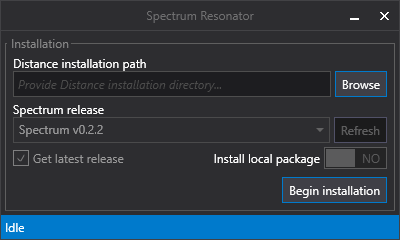
From there you can click Browse and target the Distance installation folder (not Distance_Data !) and then Begin installation.
When installing spectrum, a code 10 error can occur, it happens when installing Spectrum and another version is already installed.

You can ignore this error message.
METHOD II: Using the installation scripts
This method will use the setup scripts provided with the compiled binaries of Spectrum. To download the binaries, go to https://github.com/Ciastex/Spectrum/releases and click on the latest release title (currently Spectrum Stable 0.2.2). After loading the page, go to Assets at the bottom and download Spectrum.zip. Open the file and extract its content in the Distance/Distance_Data folder and replace all files when asked. Navigate to Managed and execute the install_spectrum_windows.bat or install_spectrum_linux.sh file depending on your operating system.
STEP 2: Enabling the console (optional but recommended)
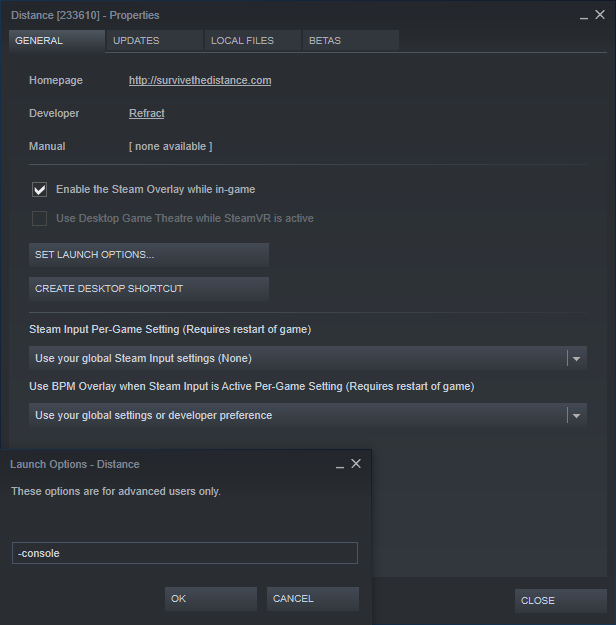
For this step, you will need to go to the steam properties for Distance by right-clicking the game in your library and go to Properties. In the General page, go to Set Launch Options and add -console at the end (add a space if other options were added before pasting it). This will enable the console and display debug messages as well as potential errors (which shouldn’t happen).
STEP 3: First time setup
Run the game once and close it to create the config files. If everything went correctly, there should be a folder called Plugins in Distance/Distance_Data/Spectrum.
DOWNLOADING MODS
STEP 1: Finding a mod
Tiyenti made a list of all known distance mods available at: https://docs.google.com/spreadsheets/d/1vMQFPP3VzR9KN3SEWljszxyuGZCQ-GvFa_5sp87SlnQ/edit. After you found a mod you want to install, go to the download page (download column).
STEP 2: Installing a mod
After downloading the mod zip file, extract it in Distance/Distance_Data/Spectrum/Plugins.
ALWAYS REMEMBER:
You should have a folder for each mod containing its own plugin.json file directly in it.
You can’t have something like Distance/Distance_Data/Spectrum/Plugins/FirstFolder/SecondFolder/plugin.json because the plugin.json file is 2 levels deep under the Spectrum/Plugins folder instead of 1.
In order for the mod to load you must have something like Distance/Distance_Data/Spectrum/Plugins/FirstFolder/plugin.json.
A mod folder can contain subfolders like Data Assets Settings or Dependencies but the plugin.json file must be at the root of the mod folder which must directly be under Distance/Distance_Data/Spectrum/Plugins.
To uninstall a mod delete its folder or move it somewhere else.
UNINSTALLING
Uninstalling Spectrum is just unpatching the game.
In other words none of your mod files will be deleted.
Instead the Spectrum mod loader will be removed and no mods will load.

If you want to fully remove the remaining files, follow the instructions in the Cleaning category.
If you purchased Distance from Steam then right-click on the game in your library and go to Properties. Navigate to the Local Files page and click on Verify Integrity Of Game Files. Steam should re download any file modified by Spectrum.

If you own the drm-free version (from Humble Bundle) go to the website and download the game setup then run it again to make a clean installation on top of the current one. None of your profiles will be deleted by doing this.
CLEANING
After uninstalling Spectrum, there might be some leftovers. Here is a list of the files and folders you can remove after uninstalling it (some mods might create additional folders not listed here, for more info contact the mod developer for additional instructions):
| Location | Type |
| Distance/Distance_Data/Managed/Mono.Cecil.dll | Application Extension |
| Distance/Distance_Data/Managed/Spectrum.Bootstrap.dll | Application Extension |
| Distance/Distance_Data/Managed/Spectrum.Prism.exe | Application Executable File |
| Distance/Distance_Data/Managed/spetrum_install_linux.sh | Shell Script |
| Distance/Distance_Data/Managed/spectrum_install_windows.bat | Windows Batch Script |
| Distance/Distance_Data/Spectrum/ | Folder |